Here to watch a service? How to get the link

Questionssales@mivobroadcast.com

For families and guests

How to watch a service

Did a funeral home’s website send you here? No service is playing from that link right now. Every service has its own link, and the family has it, so here is how to get the link and what to do with it.

For the family

Share the link

People will ask you for the link. Here is where it is.

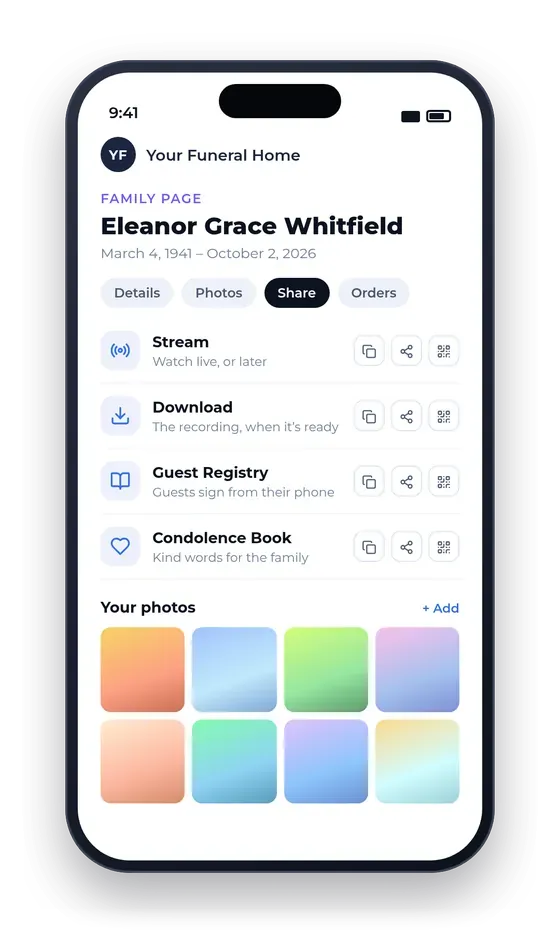
  1. Open your family page

    Use the link in the funeral home’s email, and type the 6-digit PIN from the same email (Access PIN).

  2. Go to Share

    It’s one of the buttons at the top of your family page.

  3. Send the Stream link

    Beside Stream, press Share to send it by text, email or WhatsApp. Copy puts it on your clipboard, and QR code shows a code to scan or print.

Keep the PIN to your family. The links you share open without it and show nothing of your private page. The Download, Guest Registry and Condolence Book links are there too.

A family’s private page on a phone, open at Share, with the Stream, Download, Guest Registry and Condolence Book links.

Step two

Watch the service

  1. Open the link a few minutes early

    On a phone, a tablet or a computer, in any up-to-date browser. There is nothing to install and no sign-in.

  2. Wait on the page

    It says “Not live yet”, then starts by itself when the service begins. No need to refresh. The time shown is the funeral home’s local time.

  3. Tap play, then the speaker icon

    Phones and browsers often start a video silently or paused. Turn the volume up too.

The picture is a few seconds behind the room. That’s normal.

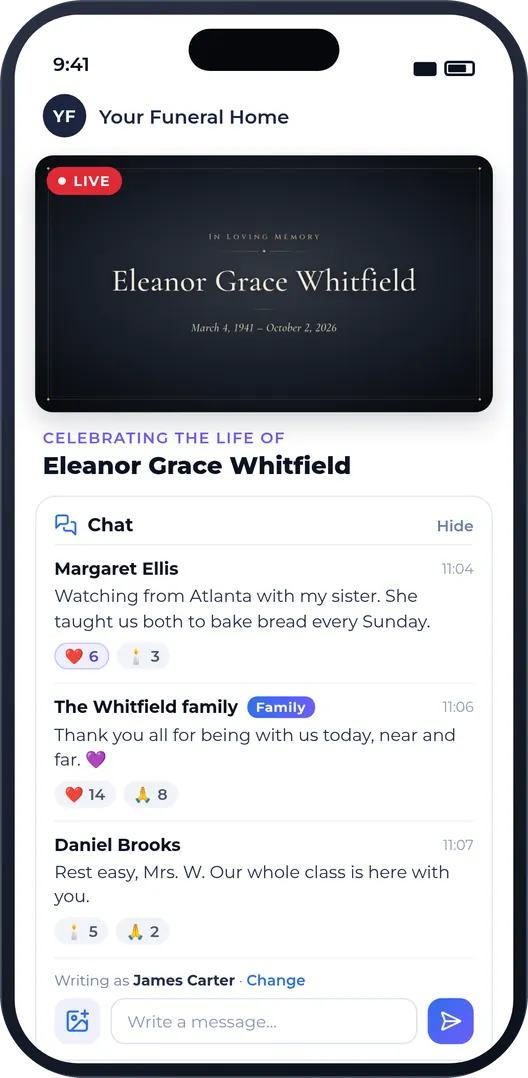
A funeral’s watch page on a phone, with the live picture and guests’ messages in the chat.

More help

Other devices, and when something isn’t working

Watching on a phone or tablet
  1. Open the link a few minutes before the service.
  2. Wait on the page: “Not live yet” turns into the picture by itself.
  3. Tap the video, then play and the speaker icon for sound.
  4. Turn the phone sideways and tap the full-screen icon in the player’s corner.

Wi-Fi is steadier than mobile data. Plug the phone in for a long service, and tap the screen now and then so it doesn’t lock.

Watching on a computer
  1. Open the link in Chrome, Safari, Microsoft Edge or Firefox a few minutes before the service.
  2. Wait on the page: it starts by itself.
  3. Click play, and the speaker icon if there’s no sound.
  4. Click the full-screen icon in the player’s corner. Press Esc to come back.
Watching on a TV

There is no TV app, but most TVs can show it in one of these ways:

  • Chromecast or Google TV: open the link in Chrome on a computer or an Android phone, then choose Cast in Chrome’s menu and pick the TV.
  • Apple TV or an AirPlay TV: start the video on an iPhone, iPad or Mac, tap the AirPlay icon in the player (or use Screen Mirroring) and pick the TV.
  • The TV’s own browser: open it and type the link exactly as written.
  • An HDMI cable: connect a laptop to the TV, choose that HDMI input and play the video full screen.

Try it a day before the service, so everything is ready on the day.

It says “Not live yet”

The service hasn’t started streaming yet. Keep the page open and it starts by itself. Services sometimes begin a little late, and the time shown is the funeral home’s, so check it against your own time zone.

After the service it says this again, because the live stream has ended. The recording comes later, on its own page.

A picture but no sound, or a paused video
  1. Tap the video once to show its controls.
  2. Tap play if it is paused.
  3. Tap the speaker icon if it shows a line through it.
  4. Turn the volume up with the device’s buttons.

Still silent? Check the device isn’t connected to headphones or a Bluetooth speaker.

The video won’t play
  1. Reload the page.
  2. “Stream unavailable” means this browser can’t play it. Update it, or open the link in another browser.
  3. Under the video, press Trouble watching? Other ways to watch and try another player.
  4. On the funeral home’s own Wi-Fi? Try switching to mobile data.
The video keeps stopping

It’s usually the internet connection. A short pause now and then is normal, and the video catches up by itself.

  • Move closer to your Wi-Fi router, or switch between Wi-Fi and mobile data.
  • Pause other things using the internet at home.
  • Close other apps and browser tabs, then reload the page.
The link doesn’t open
  1. Open it straight from the message or email rather than typing it. Long links are easy to mistype.
  2. If an email split the link over two lines, copy the whole of it into the browser.

Links close some weeks after the service. Still not opening? Ask the family or the funeral home for a new one.

Watching it again later

If the service was recorded, the recording comes later, on its own page. Ask the family for the Download link, which is on their family page under Share, beside the Stream link.

It’s usually ready within 7 to 10 days of the service. It can be downloaded only for a while, so please keep your own copy.

For the family: a lost link or PIN
  1. Search your email for the funeral home’s name, or for “Access PIN”. Check the spam or junk folder too.
  2. Found it? Open the link in the email and type the PIN.
  3. Not found? Call the funeral home, or write to support@mivobroadcast.com.

A new PIN replaces the old one, and the link stays the same.

Still stuck?

Who to ask

During a service

Call the funeral home. It’s the quickest way, and their number is on their website.

A problem with the watch page

Press Trouble with this page? Tell us at the bottom of the page, where it’s offered.

Anything else

Write to support@mivobroadcast.com. Questions about the service itself, like its time or a late change, go to the funeral home.

Log in, at the top of this site, is for funeral home staff. Families and guests never need it.